

Quick Start
Remote MCP is the easiest way to connect. CryptoQuant hosts the MCP server, and your AI client connects to it directly via URL.Which method should I use?
- Connector — Recommended for most users. Simply connect and start asking questions in Claude.ai or Claude Desktop.
- Config Setting — For developers who want to integrate CryptoQuant MCP into their own workflows or tools.
Using Connector
— Claude.ai and Claude Desktop- In Claude, click “Add connectors”
-
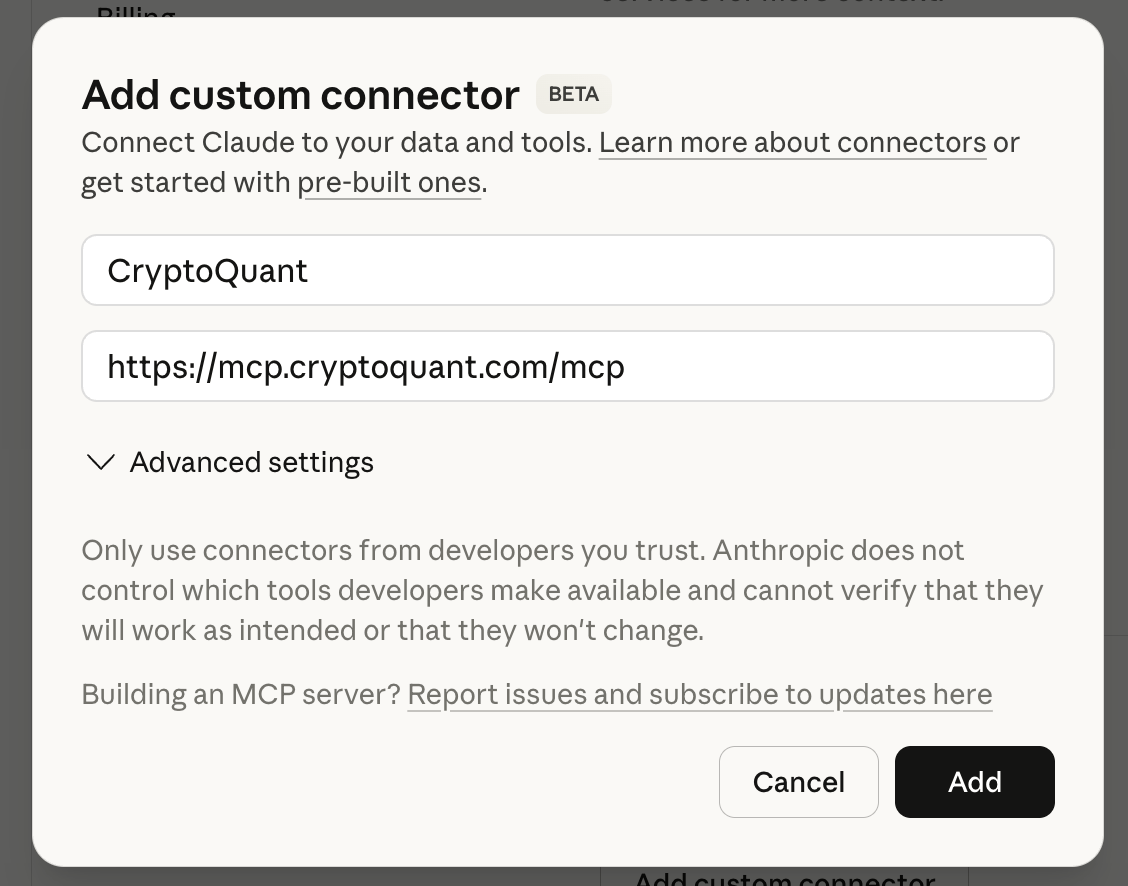
Select “Add custom connector”
-
Enter the following:
- Name:
CryptoQuant - Remote MCP Server URL:
https://mcp.cryptoquant.com/mcp
- Name:
- Click “Add”
-
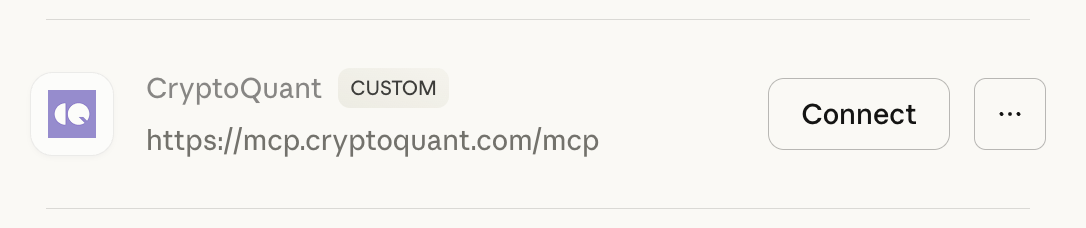
Click “Connect”
-
Choose either API Key or Keyless authentication
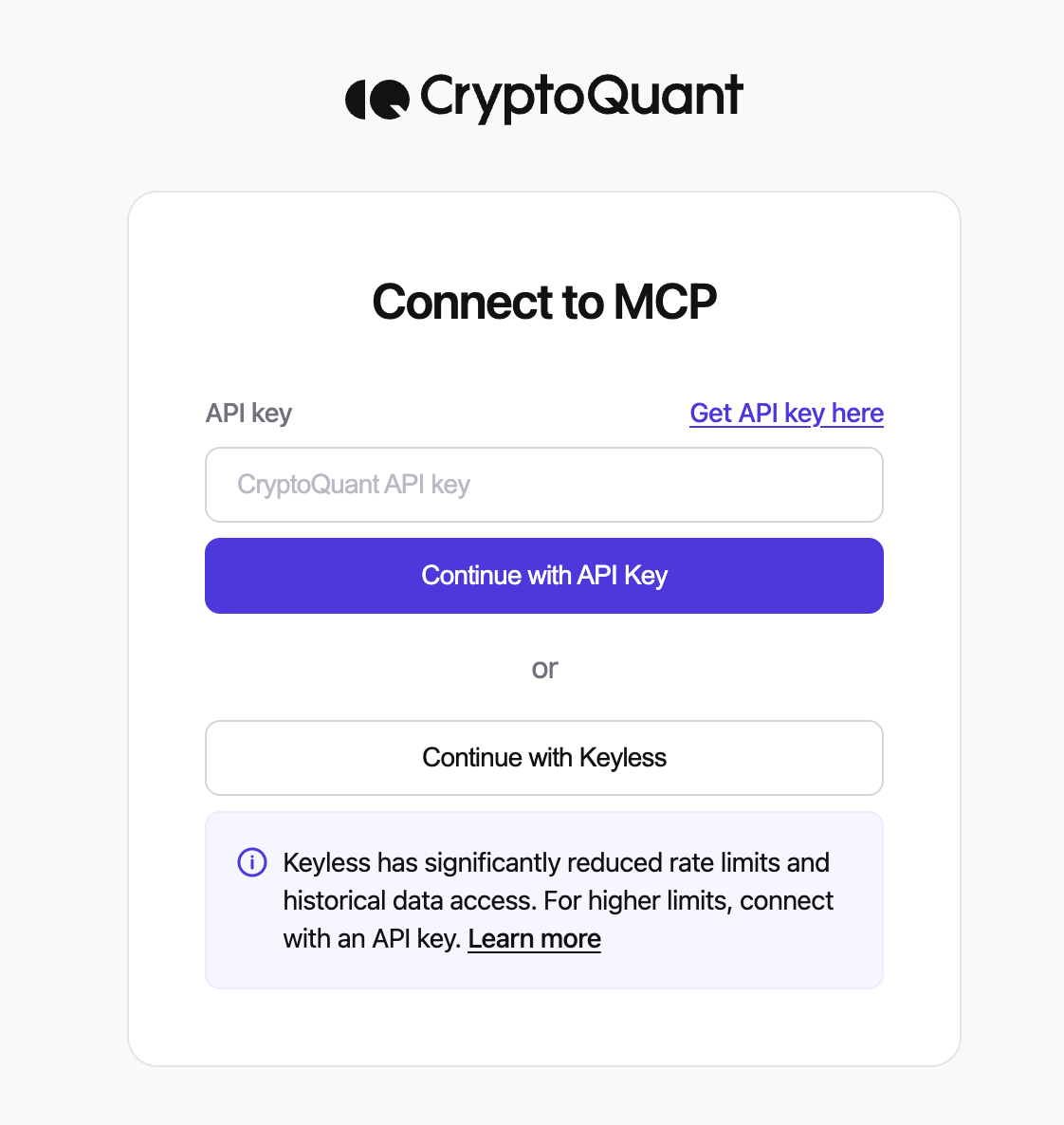
⚠️ Keyless mode uses a shared rate limit pool. This means limits may be reached more quickly due to usage from other users. For a dedicated rate limit, use your own API Key.
- You’re ready to go!
Using Config Setting
— Claude Desktop/Claude Code/Cursor⚠️ Prerequisites: Node.js v18 or higher must be installed. Download from nodejs.orgAdd the following to your MCP configuration file:
Claude Desktop (claude_desktop_config.json)
path for Mac :~/Library/Application Support/Claude/claude_desktop_config.json
path for Windows : %APPDATA%\\Claude\\claude_desktop_config.json
Cursor (mcp.json)
path.cursor/mcp.json
Claude Code
Authentication
Complete the authentication flow the same way as the Connector setup above.Troubleshooting
Remote MCP Connection Issues
- Verify the server URL is correct:
https://mcp.cryptoquant.com/mcp - Check your internet connection
- For desktop clients using config setting, verify Node.js v18+ is installed
- Try refreshing the connector or removing and re-adding it
API Key Issues
- Verify the API key is valid on the settings page
- If using environment variables, verify they are set correctly