> ## Documentation Index
> Fetch the complete documentation index at: https://docs.cryptoquant.com/llms.txt
> Use this file to discover all available pages before exploring further.
# Remote MCP (Recommended)
> The easiest way to connect to CryptoQuant's MCP server — add the hosted URL as a connector in Claude.ai, Claude Desktop, or your AI client, no install required.
## Quick Start
Remote MCP is the easiest way to connect. CryptoQuant hosts the MCP server, and your AI client connects to it directly via URL.
> **Which method should I use?**
>
> * **Connector** — Recommended for most users. Simply connect and start asking questions in Claude.ai or Claude Desktop.
> * **Config Setting** — For developers who want to integrate CryptoQuant MCP into their own workflows or tools.
### Using Connector
— [Claude.ai](http://Claude.ai) and Claude Desktop
1. In Claude, click **"Add connectors"**
2. Select **"Add custom connector"**
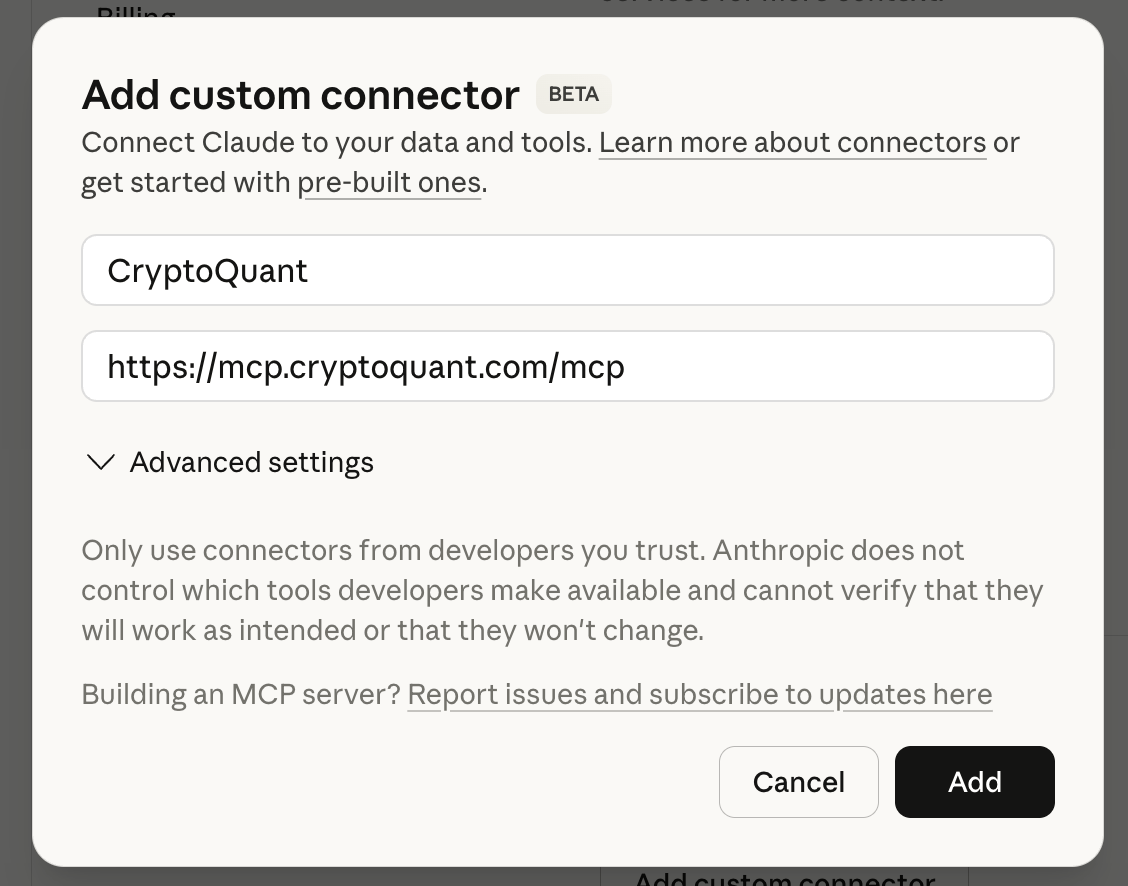 3. Enter the following:
* **Name**: `CryptoQuant`
* **Remote MCP Server URL**: `https://mcp.cryptoquant.com/mcp`
4. Click **"Add"**
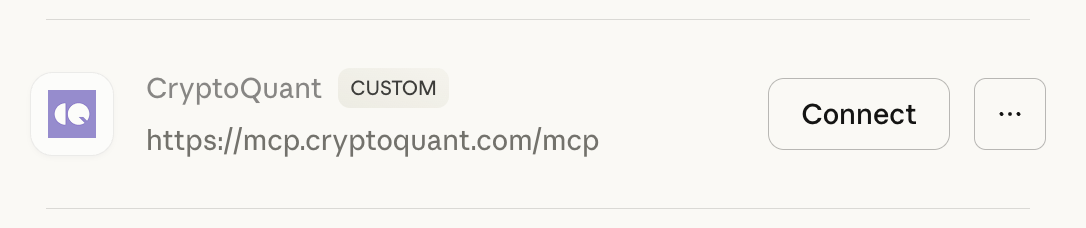
5. Click **"Connect"**
3. Enter the following:
* **Name**: `CryptoQuant`
* **Remote MCP Server URL**: `https://mcp.cryptoquant.com/mcp`
4. Click **"Add"**
5. Click **"Connect"**
 6. Choose either **API Key** or **Keyless** authentication
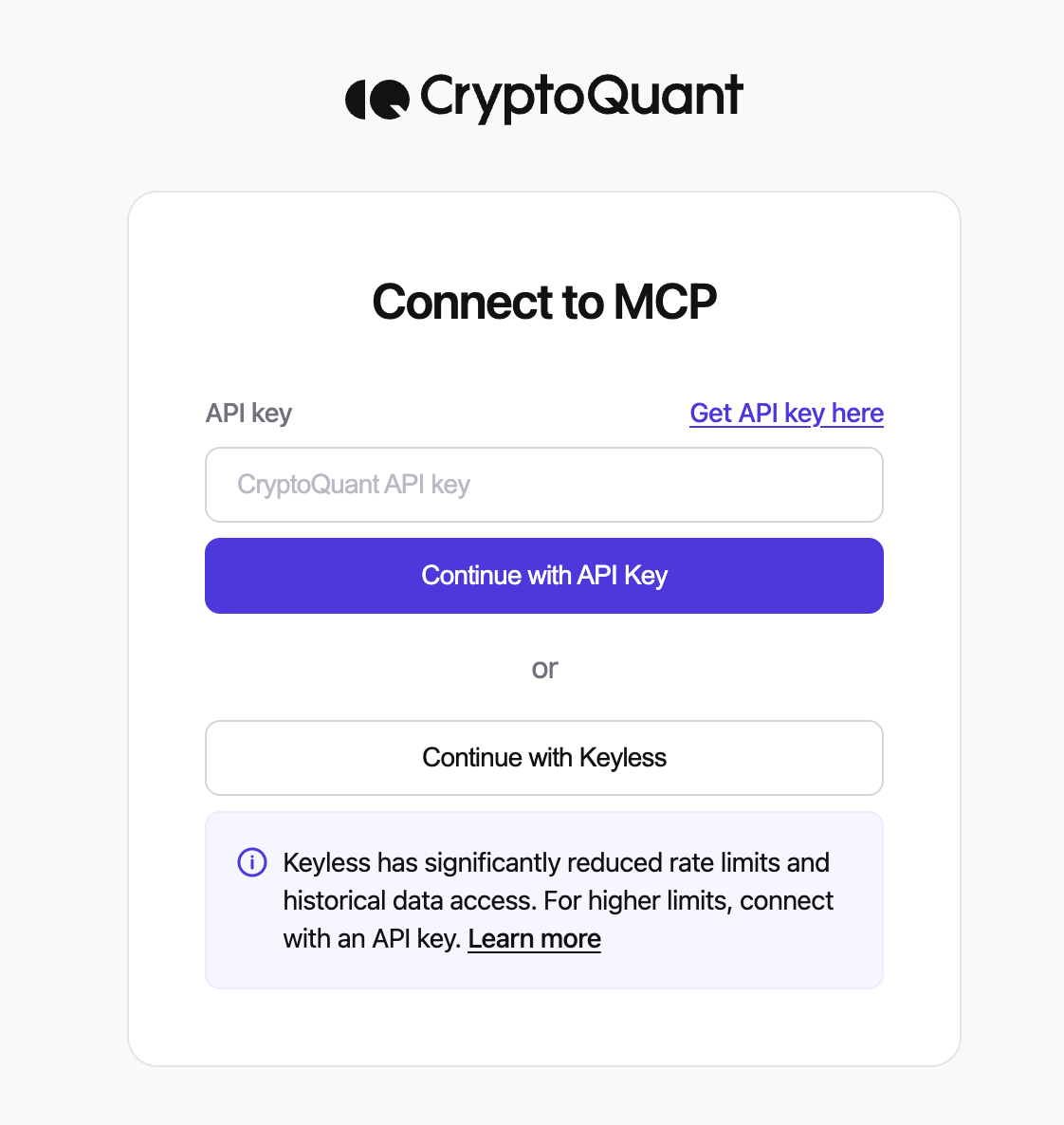 > ⚠️ **Keyless mode uses a shared rate limit pool.** This means limits may be reached more quickly due to usage from other users. For a dedicated rate limit, use your [own API Key](https://cryptoquant.com/settings/api).
7. You're ready to go!
### Using Config Setting
— Claude Desktop/Claude Code/Cursor
> ⚠️ **Prerequisites**: Node.js v18 or higher must be installed. [Download from nodejs.org](https://nodejs.org/en/download)
Add the following to your MCP configuration file:
#### **Claude Desktop (claude\_desktop\_config.json)**
path for Mac : `~/Library/Application Support/Claude/claude_desktop_config.json`
path for Windows : `%APPDATA%\\Claude\\claude_desktop_config.json`
```json theme={null}
{
"mcpServers": {
"CryptoQuant": {
"command": "npx",
"args": [
"mcp-remote",
"https://mcp.cryptoquant.com/mcp"
]
}
}
}
```
#### **Cursor (mcp.json)**
path `.cursor/mcp.json`
```json theme={null}
{
"mcpServers": {
"CryptoQuant": {
"url": "https://mcp.cryptoquant.com/mcp"
}
}
}
```
#### **Claude Code**
```bash theme={null}
claude mcp add --transport http CryptoQuant https://mcp.cryptoquant.com/mcp
```
After saving, restart the app.
#### Authentication
Complete the authentication flow the same way as the Connector setup above.
## Troubleshooting
#### Remote MCP Connection Issues
1. Verify the server URL is correct: `https://mcp.cryptoquant.com/mcp`
2. Check your internet connection
3. For desktop clients using config setting, verify Node.js v18+ is installed
4. Try refreshing the connector or removing and re-adding it
#### API Key Issues
1. Verify the API key is valid [on the settings page](https://cryptoquant.com/settings/api)
2. If using environment variables, verify they are set correctly
> ⚠️ **Keyless mode uses a shared rate limit pool.** This means limits may be reached more quickly due to usage from other users. For a dedicated rate limit, use your [own API Key](https://cryptoquant.com/settings/api).
7. You're ready to go!
### Using Config Setting
— Claude Desktop/Claude Code/Cursor
> ⚠️ **Prerequisites**: Node.js v18 or higher must be installed. [Download from nodejs.org](https://nodejs.org/en/download)
Add the following to your MCP configuration file:
#### **Claude Desktop (claude\_desktop\_config.json)**
path for Mac : `~/Library/Application Support/Claude/claude_desktop_config.json`
path for Windows : `%APPDATA%\\Claude\\claude_desktop_config.json`
```json theme={null}
{
"mcpServers": {
"CryptoQuant": {
"command": "npx",
"args": [
"mcp-remote",
"https://mcp.cryptoquant.com/mcp"
]
}
}
}
```
#### **Cursor (mcp.json)**
path `.cursor/mcp.json`
```json theme={null}
{
"mcpServers": {
"CryptoQuant": {
"url": "https://mcp.cryptoquant.com/mcp"
}
}
}
```
#### **Claude Code**
```bash theme={null}
claude mcp add --transport http CryptoQuant https://mcp.cryptoquant.com/mcp
```
After saving, restart the app.
#### Authentication
Complete the authentication flow the same way as the Connector setup above.
## Troubleshooting
#### Remote MCP Connection Issues
1. Verify the server URL is correct: `https://mcp.cryptoquant.com/mcp`
2. Check your internet connection
3. For desktop clients using config setting, verify Node.js v18+ is installed
4. Try refreshing the connector or removing and re-adding it
#### API Key Issues
1. Verify the API key is valid [on the settings page](https://cryptoquant.com/settings/api)
2. If using environment variables, verify they are set correctly